
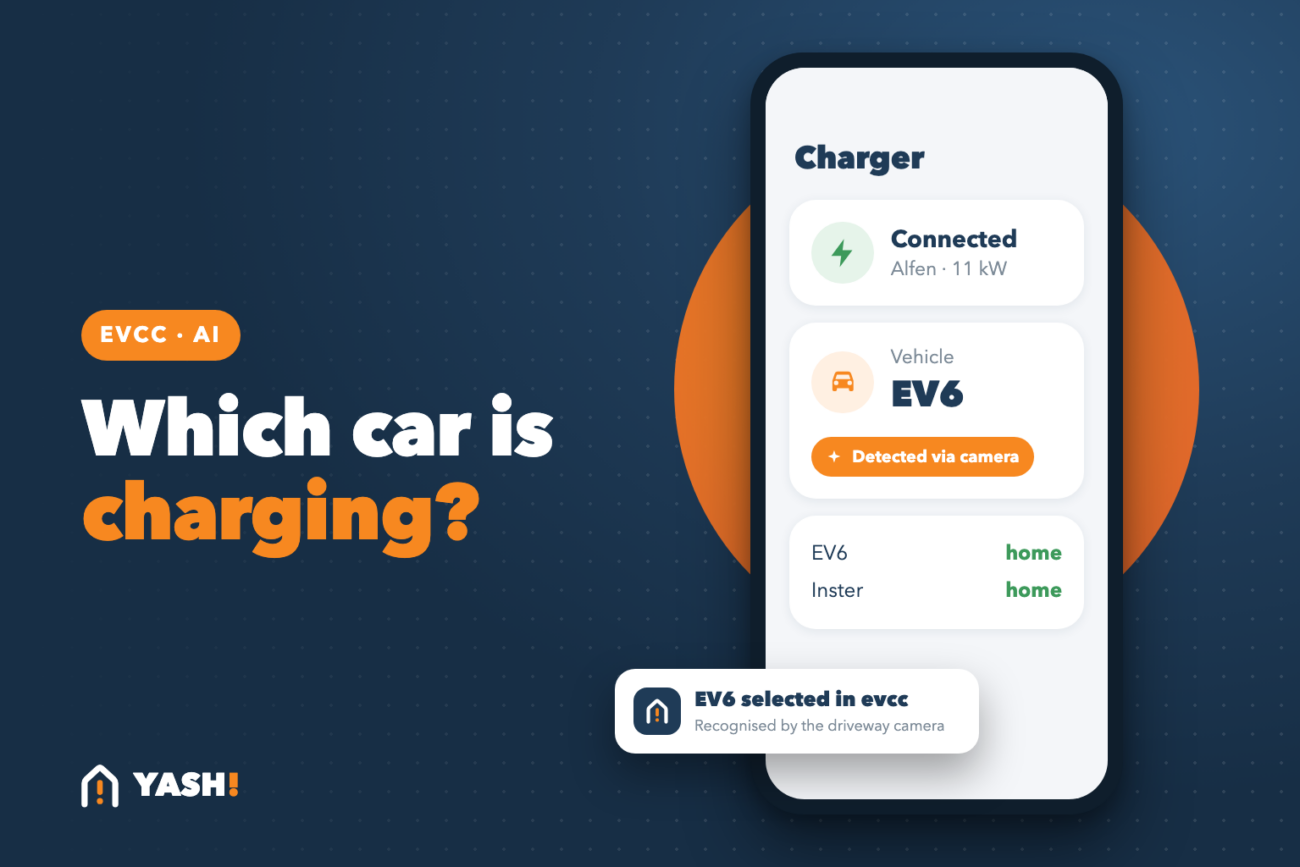
In our household we have two electric cars: a Kia EV6 and a Hyundai Inster. Both of them charge on the same Alfen charger in the driveway, and evcc decides when and how fast they charge. I wrote about that setup in Smart Charging My EVs with evcc.
In that article I mentioned that I set vehicle detection to automatic. In practice, that turned out to be less automatic than I hoped. More often than not, evcc had no idea which car was plugged in. evcc relies on the car’s cloud API to figure out which vehicle is charging, and the Kia and Hyundai cloud was sometimes just too slow to respond. And when evcc doesn’t know the car, it doesn’t know the battery size, the current State of Charge or which charging plan to follow. So the car either charged at the wrong moment, or not at all.
The Goal
My requirements were simple:
- No manual action: Plug in the cable, done.
- Use what I already have: Both cars are already in Home Assistant through the Kia Uvo / Hyundai Bluelink integration, and there’s a Reolink camera pointing at the driveway.
- Only guess when needed: If evcc already recognised the car, leave it alone.
What You’ll Need
- evcc integrated into Home Assistant (I use the evcc☀️🚘- Solar Charging integration by marq24 from HACS)
- A location tracker per car, in my case
device_tracker.ev6_locationanddevice_tracker.inster_location - A camera that can see the car while it’s charging
- LLM Vision installed via HACS, with a provider configured. I use Google Gemini.
How It Works
The idea is a two-step check:
- When a car is plugged in, Home Assistant waits a few seconds to give evcc a chance to detect the vehicle itself.
- If evcc still shows no vehicle, Home Assistant looks at the GPS location of both cars. If only one of them is home, that’s the one on the cable.
- If both cars are home (or neither of them, because the car’s location wasn’t updated in time), a snapshot of the driveway camera goes to LLM Vision, which tells me which car it sees.
- The result is written to the vehicle select of the evcc loadpoint.
GPS handles most cases. The camera is only the fallback for the evenings when both cars are on the driveway.
Step 1: Find the Vehicle IDs in evcc
The evcc integration creates a select entity for every loadpoint. In my case that’s select.evcc_laadpaal_vehicle_name. The options aren’t the names of the cars but their internal evcc IDs. Check them in Developer Tools under States:
options:
  - "null"
  - db:11
- db:6null means no vehicle is selected. db:6 is my EV6 and db:11 is the Inster. Your IDs will be different, so note them down before continuing.
Step 2: Choose the Car Based on Location
The automation triggers on the connected binary sensor of the loadpoint. After 20 seconds it checks whether the cable is still connected and whether evcc already picked a vehicle on its own. If a db: value is selected, evcc did its job and the automation stops.
- id: evcc_change_guest_vehicle
  alias: "EVCC: Select vehicle with vision fallback"
  initial_state: 'on'
  mode: restart
  triggers:
    - trigger: state
      entity_id: binary_sensor.evcc_laadpaal_connected
      to: "on"
  actions:
    - delay: "00:00:20"
    - condition: state
      entity_id: binary_sensor.evcc_laadpaal_connected
      state: "on"
    - condition: template
      value_template: >
        {{ 'db:' not in states('select.evcc_laadpaal_vehicle_name') }}
    - choose:
        # Only the Inster is home
        - conditions:
            - condition: state
              entity_id: device_tracker.inster_location
              state: "home"
            - condition: not
              conditions:
                - condition: state
                  entity_id: device_tracker.ev6_location
                  state: "home"
          sequence:
            - action: select.select_option
              target:
                entity_id: select.evcc_laadpaal_vehicle_name
              data:
                option: "db:11"
        # Only the EV6 is home
        - conditions:
            - condition: state
              entity_id: device_tracker.ev6_location
              state: "home"
            - condition: not
              conditions:
                - condition: state
                  entity_id: device_tracker.inster_location
                  state: "home"
          sequence:
            - action: select.select_option
              target:
                entity_id: select.evcc_laadpaal_vehicle_name
              data:
                option: "db:6"
      default:
# Both or neither car is home: see Step 3I use mode: restart on purpose. If someone unplugs the car and plugs it back in, only the last attempt counts.
Step 3: Let the Camera Decide
This is the default part of the choose block above. It runs when the location doesn’t give a clear answer. LLM Vision takes a snapshot from the driveway camera and sends it to Gemini together with a prompt.
      default:
        - action: llmvision.image_analyzer
          data:
            provider: YOUR_PROVIDER_ID
            image_entity:
              - camera.camera_1_camera_1
            target_width: 1280
            max_tokens: 3000
            store_in_timeline: false
            use_memory: false
            include_filename: false
            generate_title: false
            expose_images: false
            response_format: text
            message: >-
              Detect whether there is a Kia EV6 or a Hyundai Inster on the driveway.
              If you're not sure, look at the colour of the car.
              My EV6 is dark blue and my Inster is lime green / yellow.
              Only return exactly one of these values:
              EV6
              Inster
              Unknown
          response_variable: car_detect
        - choose:
            - conditions:
                - condition: template
                  value_template: "{{ car_detect.response_text | trim == 'Inster' }}"
              sequence:
                - action: select.select_option
                  target:
                    entity_id: select.evcc_laadpaal_vehicle_name
                  data:
                    option: "db:11"
            - conditions:
                - condition: template
                  value_template: "{{ car_detect.response_text | trim == 'EV6' }}"
              sequence:
                - action: select.select_option
                  target:
                    entity_id: select.evcc_laadpaal_vehicle_name
                  data:
                    option: "db:6"
          default:
            - action: logbook.log
              data:
                name: evcc
message: "Vision fallback could not reliably determine whether it is the EV6 or the Inster."A few things worth pointing out in the prompt:
- Restrict the answer. Language models like to answer in full sentences. By giving a fixed list of values, the response can be used directly in a template condition. The
trimis there because a stray newline or space is enough to break the comparison. - Mention the colour. Telling an EV6 and an Inster apart by shape isn’t always easy from a camera angle, especially at night. Colour gives the model an extra hint, and with two cars as different as ours that’s an easy one. If you have two grey cars, you might need a different trick.
- Always allow “Unknown”. I’d rather have no vehicle selected than the wrong one. If the model isn’t sure, the automation just writes a line to the logbook and I pick the car manually.
- Find your provider ID. You’ll find it in the LLM Vision action in Developer Tools: select the provider in the UI and switch to YAML mode.
Keep in mind that the snapshot is sent to Google. In my case the camera only sees the driveway, so I’m fine with that. If you’d rather keep everything local, LLM Vision also supports Ollama.
Final Thoughts
This started as a small annoyance and turned into a neat little automation. GPS handles most situations, and the camera only steps in when both cars are home. Since then, the right car shows up in evcc without anyone opening an app.
It’s also a nice example of how AI can be useful in a smart home without taking over. The model doesn’t decide anything on its own. It answers one small question with one word, and Home Assistant does the rest.
Related tutorials: Smart Charging My EVs with evcc and Track Your Parking Location in Home Assistant