Posted in

Integrating Segway Navimow with Home Assistant

Update – October 10, 2025: Google made some changes within their authentication, making the setup harder than before. You will need to be able to run a python script in order to get the integration running. If that’s not your cup of tea, you better not continue.

At the time of writing, there’s no official integration for the Segway Navimow lawn mowers in Home Assistant. That’s a bit of a bummer, because having mower control, status, and automations alongside the rest of your smart home would be extremely powerful.

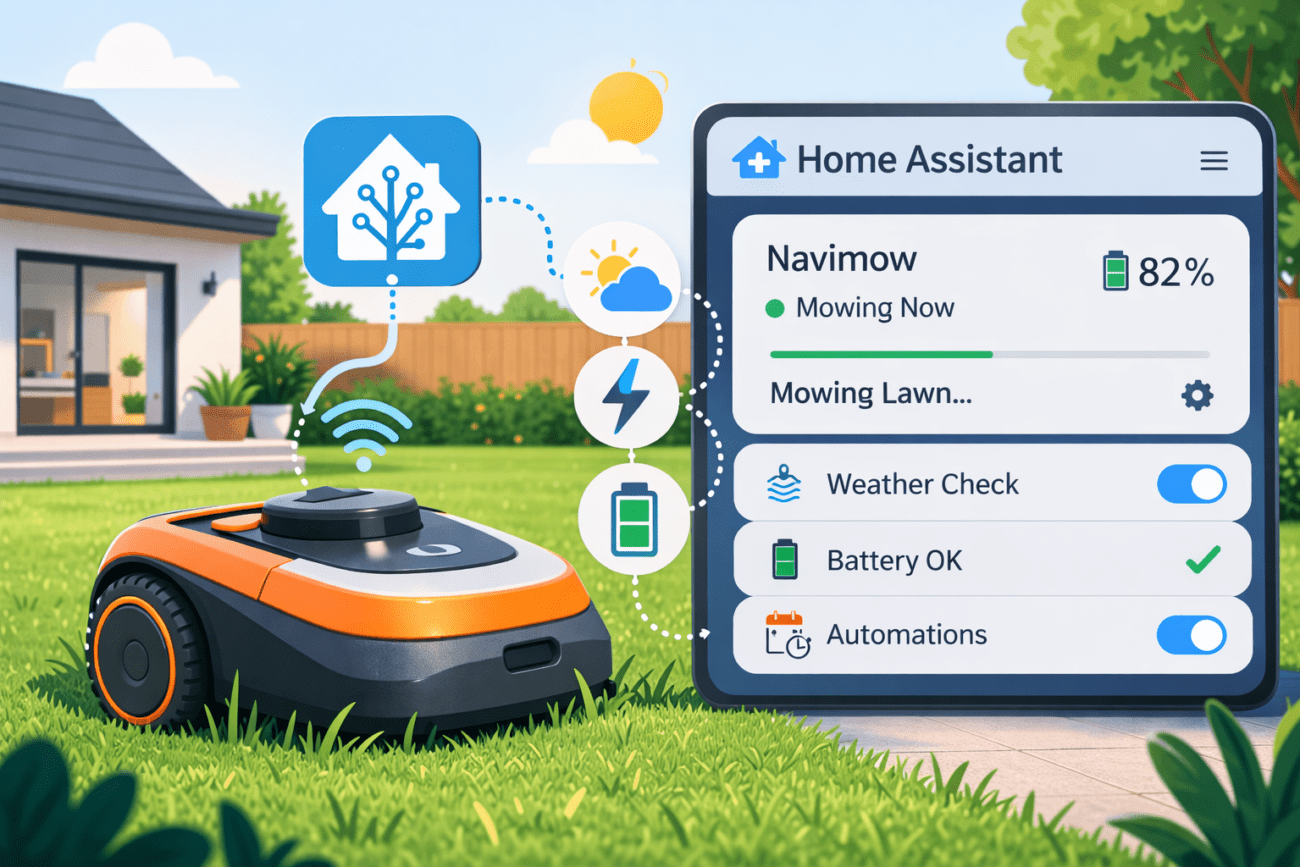
Luckily, thanks to some clever work in the Home Assistant community, it’s possible to bring the Navimow into HA using the Google Assistant SDK and MQTT. With a bit of setup, you can expose your mower as a true lawn_mower entity, complete with status, battery level, and command control.

This guide is based on the pioneering work by MatrixRewriter on the HA forums. I’ve expanded it into a step-by-step walkthrough with some added detail and context for advanced users.

Step 1: Link Navimow to Google Home

Before anything else, make sure your Navimow is linked to Google Home.

  • Open the Google Home app and add your Navimow mower as a device.
  • If you’re not sure how, follow Google’s documentation here.

This is required because we’ll be querying Google Assistant for mower status and sending commands through it.

Step 2: Install the Custom Google Assistant SDK

Next, install the Custom Google Assistant SDK.

This SDK allows you to send text commands to Google Assistant and get back textual responses. We’ll use those responses to parse activity and battery values. Make sure to follow the complete installation instructions as set out in the repository.

Step 3: Use Desktop Credentials

In October 2025, Google introduced changes that affect how the Custom Google Assistant SDK handles personal results. As a result, the SDK can still respond to general queries (e.g., “Tell me a joke”) but no longer provides personalized responses (e.g., “What is Navimow doing?”).

To restore access to personal results, you’ll need to set up desktop app credentials, run a Python script, and make a few adjustments within Home Assistant. The full set of instructions can be found in the section Create and Apply Desktop App Credentials. Be sure to follow each step carefully to ensure everything works correctly.

To test the setup, open Developer Tools in Home Assistant, go to the Actions tab, and select google_assistant_sdk_custom.send_text_command. Enter the command: What is navimow doing?. It should return a response. In my case, it took a little while before it started working, possibly due to caching. If you don’t get an immediate response, try waiting a bit and/or toggling debug mode for the component off and on again. That seemed to do the trick for me.

Step 4: Create an MQTT Lawn Mower Entity in Home Assistant

Home Assistant doesn’t support creating a lawn mower entity directly from a template, so we’ll go through MQTT. If you don’t already have an MQTT broker (e.g., Mosquitto), set one up first.

Then, add the following configuration to your configuration.yaml (adapt identifiers, topics, and serials to your setup):

mqtt:
  lawn_mower:
    - name: "navimow i105e"
      unique_id: navimow_i105e
      activity_state_topic: "mower/navimow_i105e/state"
      activity_value_template: "{{ value_json.activity }}"
      start_mowing_command_topic: "mower/navimow_i105e/cmd"
      start_mowing_command_template: '{"action":"start"}'
      pause_command_topic: "mower/navimow_i105e/cmd"
      pause_command_template: '{"action":"pause"}'
      dock_command_topic: "mower/navimow_i105e/cmd"
      dock_command_template: '{"action":"dock"}'
      json_attributes_topic: "mower/navimow_i105e/state"
      availability_topic: "mower/navimow_i105e/availability"
      payload_available: "online"
      payload_not_available: "offline"
      device:
        identifiers:
          - "12345"
        manufacturer: "Segway"
        model: "Navimow"
        model_id: "i105E"
        name: "Navimow i105E"
        serial_number: "12345"
  sensor:
    - name: "Navimow i105e Battery"
      unique_id: navimow_i105e_battery
      state_topic: "mower/navimow_i105e/state"
      value_template: "{{ value_json.battery | int }}"
      availability_topic: "mower/navimow_i105e/availability"
      device_class: battery
      unit_of_measurement: "%"
      state_class: measurement
      device:
        identifiers:
          - "12345"
        manufacturer: "Segway"
        model: "Navimow"
        model_id: "i105E"
        name: "Navimow i105E"
        serial_number: "12345"

Important: Use the same identifiers for both the sensor and the mower object — this links them together under one device in Home Assistant

Step 5: Automate Status Updates via Google Assistant

We now need a way to keep the mower state fresh in HA. This automation queries Google Assistant every 5 minutes (except at night), parses the responses, and publishes state updates to MQTT.

Here’s a working example:

- id: lawn_mower_update
  alias: "Navimow i105: Get state"
  initial_state: 'on'
  mode: restart
  description: >-
    Notes:

    * Google Assistant API rate limit: 500 requests per 24 hours (seems to reset
    at 7:00am UTC).

    * Quota status:
    https://console.cloud.google.com/apis/api/embeddedassistant.googleapis.com/quotas?...
  triggers:
    - trigger: time_pattern
      minutes: /5
    - trigger: homeassistant
      event: start
  conditions:
    - condition: numeric_state
      entity_id: sun.sun
      attribute: elevation
      above: -15
  actions:
    - action: google_assistant_sdk_custom.send_text_command
      metadata: {}
      data:
        command:
          - what is Navimow i105 battery level
          - what is Navimow i105 doing
      response_variable: result
    - variables:
        is_available: >-
          {{ result is defined and result.responses is defined and (result.responses | count) >= 2
             and (result.responses[0].text | default('')) != '' and (result.responses[1].text | default('')) != '' }}
        battery_text: "{{ result.responses[0].text | default('') }}"
        status_text: "{{ result.responses[1].text | default('') }}"
        s: "{{ status_text | lower | replace('’', \"'\") }}"
        activity: >-
          {# errors first #}
          {% if s is search('lost|error|fault|alarm|stuck|blocked|obstacle|outside|disconnected|offline', ignorecase=True) %}
            error
          {# paused #}
          {% elif s is search("\\bpause(?:d|ing|s)?\\b", ignorecase=True) %}
            paused
          {# explicitly "isn't/is not/not running" → docked #}
          {% elif s is search("\\bisn['’]?t\\s+running\\b|\\bis\\s+not\\s+running\\b|\\bnot\\s+running\\b", ignorecase=True) %}
            docked
          {# docked keywords #}
          {% elif s is search("\\b(charging|charge|base|home|station)\\b", ignorecase=True) %}
            docked
          {# "is running" / running #}
          {% elif s is search("\\bis\\s+running\\b|\\brunning\\b", ignorecase=True) %}
            mowing
          {# mowing keywords #}
          {% elif s is search("\\b(mow|cut|working|in\\s*progress)\\b", ignorecase=True) %}
            mowing
          {% else %}
            docked
          {% endif %}
        battery: >-
          {% if battery_text is search('([0-9]{1,3})\\s?(?:percent|%)', ignorecase=True) %}
            {{ battery_text | regex_replace(find='.*?([0-9]{1,3})\\s?(?:percent|%).*', replace='\\1', ignorecase=True) | int }}
          {% else %}
            0
          {% endif %}
    - if:
      - condition: template
        value_template: "{{ is_available }}"
      then:
        - service: mqtt.publish
          data:
            topic: mower/navimow_i105e/availability
            payload: "online"
            retain: true
        - service: mqtt.publish
          data:
            topic: mower/navimow_i105e/state
            payload: >
                  {{ {
                    "activity": activity,
                    "battery": battery,
                    "status_text": status_text,
                    "battery_text": battery_text
                  } | tojson }}
            retain: true
      else:
        - service: mqtt.publish
          data:
            topic: mower/navimow_i105e/availability
            payload: "offline"
            retain: true

Google Assistant API limit is 500 requests per 24h (reset at ~07:00 UTC). At one update every 5 minutes, you’re safe. If you want more frequent updates, adjust carefully or you’ll hit the quota.

Step 6: Forward Commands from HA → Google Assistant

Now let’s make mower controls (Start, Pause, Dock) work. We’ll set up an automation that listens for MQTT commands from the mower entity and sends the corresponding Google Assistant command.

- alias: "Navimow i105: Command handler (MQTT → Google SDK)"
  id: navimow_i105_cmd_handler
  mode: single
  trigger:
    - platform: mqtt
      topic: mower/navimow_i105e/cmd
  variables:
    action: "{{ trigger.payload_json.action | default('') }}"
  action:
    - choose:
        - conditions: "{{ action == 'start' }}"
          sequence:
            - service: google_assistant_sdk_custom.send_text_command
              data:
                command:
                  - "start mowing with Navimow i105"
                  - "Navimow i105 start mowing"
        - conditions: "{{ action == 'pause' }}"
          sequence:
            - service: google_assistant_sdk_custom.send_text_command
              data:
                command:
                  - "pause Navimow i105"
                  - "Navimow i105 pause"
        - conditions: "{{ action == 'dock' }}"
          sequence:
            - service: google_assistant_sdk_custom.send_text_command
              data:
                command:
                  - "return Navimow i105 to the dock"
                  - "Navimow i105 go to base"

Now, when you press Start, Pause, or Dock on the mower entity in HA, the command flows through MQTT → automation → Google Assistant → Navimow.

Step 7: Install the lawn mower card (Optional)

If you want a clean UI for status + controls, add the lawn mower card to your dashboard. Here is my current configuration. (You might not need to configure the actions).

- type: custom:lawn-mower-card
  entity: lawn_mower.navimow_i105e
  battery: sensor.navimow_i105e_battery
  image: /local/images/navimow-i105e.png?v=2
  show_toolbar: true
  show_shortcuts: false
  actions:
    start:
      service: lawn_mower.start_mowing
      service_data:
        entity_id: lawn_mower.navimow_i105e
    pause:
      service: lawn_mower.pause
      service_data:
        entity_id: lawn_mower.navimow_i105e
    return_to_base:
      service: lawn_mower.dock
      service_data:
        entity_id: lawn_mower.navimow_i105e
The lawn mower card in action.

Step 8: That’s it!

That’s it! You now have a working lawn_mower entity in Home Assistant for your Navimow. You’ll be able to see mower state, battery, and send commands all natively inside HA.

The device in MQTT integration
Available options

Troubleshooting

Getting Empty Responses

If you’re receiving empty responses, it’s likely that your desktop credentials weren’t set up correctly. Double-check your configuration by reviewing Step 3.

Results Not Parsed Correctly

If results aren’t being parsed as expected, open the Developer Tools in Home Assistant. Search for your lawn mower entities. Within their attributes, you’ll find the raw text response from Google Assistant.
If the returned message doesn’t match the regular expression used in your automation, you may need to update the parsing logic to align with the actual response format.

Final Thoughts

This integration is a workaround until Segway (hopefully) provides an official API. A couple of things to keep in mind:

  • It relies entirely on Google Assistant integration. If Google changes its responses, this setup could break.
  • Response parsing can be fragile, if you notice odd states, check the regex templates and adjust them.
  • For reliability, you may want to add logging or even a small Node-RED flow to better handle parsing and retries.

But for now, this works surprisingly well. Big thanks to MatrixRewriter and the HA community for making this possible.

12 thoughts on “Integrating Segway Navimow with Home Assistant

  1. Hi there!
    Thanks for this tutorial.

    I have a problem in step3:
    After pasting the code in configuration.yaml it shows an error message:

    Property lawn_mower is not allowed.

    Can you help?

    Thanks!
    Christian

    1. Hi Christian! I did a quick check on my side by copy-pasting. No problems here. Could you double check everything is set correctly? Might be a space or tab that could be the issue here.

      1. Well, I tried to check in the meanwhile. And I think your code should work. However I already use MQTT for a while – but when I past your code in the error is shown.
        I will investigate…
        Here is the current text in the yaml:

        mqtt:

        sensor:

        – name: “Gaszähler Zählerstand”
        unique_id: sensor.gaszaehler_zaehlerstand
        state_topic: “tele/Gaszaehler/json”
        value_template: ‘{{ value_json.gastotal }}’
        unit_of_measurement: ‘m³’
        payload_available: “Online”
        payload_not_available: “Offline”
        device_class: gas
        state_class: “total_increasing”

      2. Well, I tried to check in the meanwhile. And I think your code should work. However I already use MQTT for a while – but when I past your code in the error is shown.
        I will investigate…
        Here is the current text in the yaml:

        mqtt:

        sensor:

        – name: “Gaszähler Zählerstand”
        unique_id: sensor.gaszaehler_zaehlerstand
        state_topic: “tele/Gaszaehler/json”
        value_template: ‘{{ value_json.gastotal }}’
        unit_of_measurement: ‘m³’
        payload_available: “Online”
        payload_not_available: “Offline”
        device_class: gas
        state_class: “total_increasing”

        1. In that case you kinda need to merge the setup above with your MQTT setup. Happy to help but it’s complicated on this page due to the mark-up getting destroyed. Feel free to sent me an e-mail (The contact form is in the menu)

  2. Thanks for the guide – but I also struggle with that the lawn_mower thing in mqtt is not allowed in home assistant . Even use of the example in the ha documentation does not work 🙁 what to do?

      1. Thanks for the quick – reply:) I don’t get the error – even though with the code example from the docs work:(

  3. Hey Peter,
    I´ve got some problems to get it working…
    I dont get any data. But I´ve only copied your code to the config yaml… I dont know where to find my own serialnumber and identifier?! Could you help me out?

    Best regards,
    Steffen

    1. Hi Steffen. Serial number can also be fake. Same for the identifier. As long its the same everywhere.

      You do can find the serial number in the Navimow app.

      In regards to the set-up, there are some issues with the Google assistant SDK. See the refered url to the home assistant community.

Leave a Reply

Your email address will not be published. Required fields are marked *